STREAM Plugin Installation & Configuration Guide (Moodle)
This guide explains how to install and configure the STREAM integration plugin in Moodle in order to manage and view recorded meetings inside your LMS.
The STREAM system allows institutions to automatically index, process, and publish recorded meetings from platforms such as Microsoft Teams or Zoom directly into Moodle.
1. Requirements
Before installing the plugin, please ensure the following:
- Moodle administrator access
- Moodle cron is properly configured
- Access to the STREAM platform
- STREAM API Key
- Meeting platform credentials (Zoom or Microsoft Teams)
2. Download the Plugins
Install the following STREAM plugins from the Moodle plugins directory.
Plugin 1 – STREAM Core Plugin
Download: https://moodle.org/plugins/local_stream
Installation directory: /local/stream
Plugin 2 – STREAM Activity Module
Download: https://moodle.org/plugins/mod_stream
Installation directory: /mod/stream
Plugin 3 – STREAM Filter Plugin (optional)
Download: https://moodle.org/plugins/filter_stream
Installation directory: /filter/stream
The filter plugin is optional.
3. Install the Plugins in Moodle
- Login to Moodle as Administrator
- Go to: Site administration → Plugins → Install plugins
- Upload the plugin ZIP files or place them in the appropriate folders on the server:
/local/stream/mod/stream/filter/stream(optional)
- Visit the Moodle notifications page: Site administration → Notifications
- Complete the installation process.
4. Configure the STREAM Plugin
After installation, configure the plugin.
Navigate to: Site administration → Plugins → Local plugins → STREAM
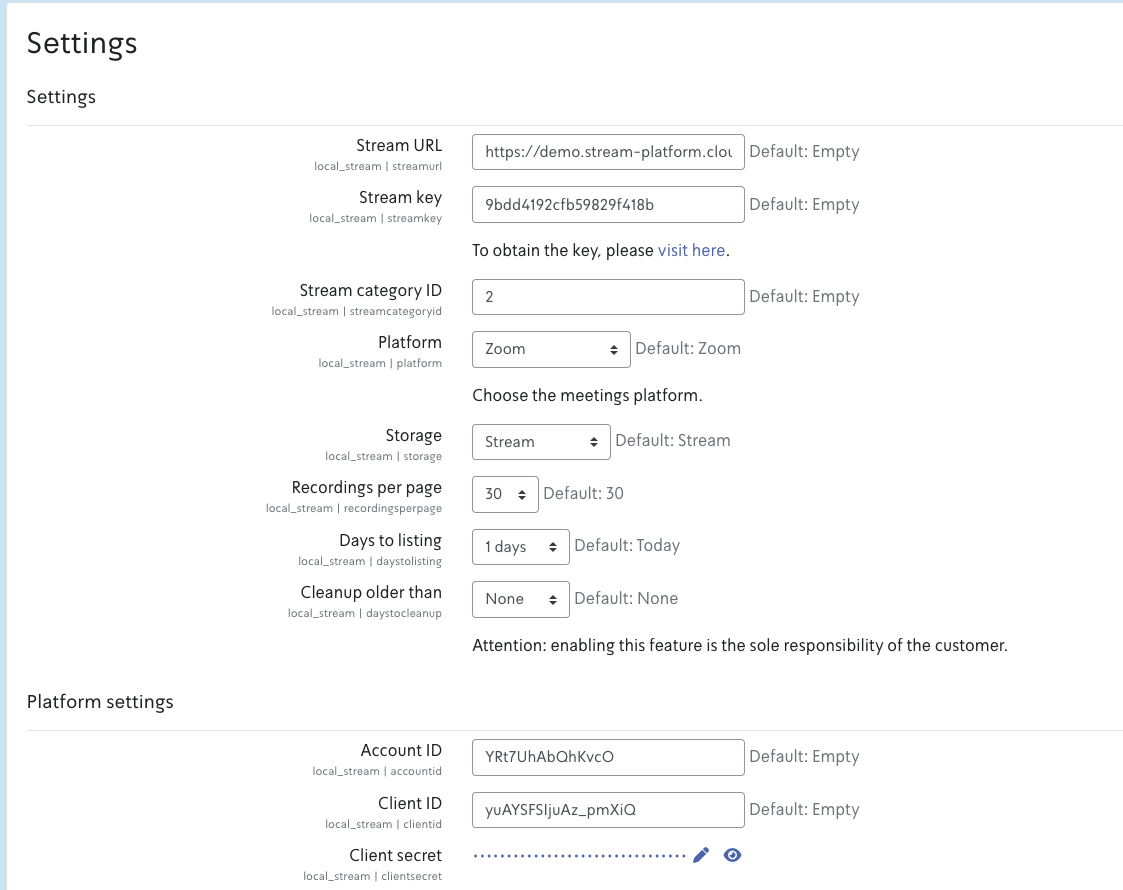
You will see the STREAM Settings page.
5. Configure STREAM Connection
Fill in the following fields:
- Stream URL
Example:https://demo.stream-platform.cloud/ - Stream Key (API Key)
Example:xxxxxxxxxxxxxxxxxxxxxxxx
This key connects Moodle to the STREAM platform.
6. Configure Video Platform Integration
Select your meeting platform. Supported platforms:
- Microsoft Teams
- Zoom
- Webex
If Using Zoom
Copy the configuration values from the Zoom plugin settings.
Navigate to: Site administration → Plugins → Activity modules → Zoom or /admin/settings.php?section=modsettingzoom
Copy the following fields into STREAM:
| Zoom Setting | STREAM Setting |
|---|---|
| Zoom Account ID | Account ID |
| Zoom Client ID | Client ID |
| Zoom Client Secret | Client Secret |
If Using Microsoft Teams
Select Microsoft Teams as the platform in STREAM settings and configure the required Microsoft credentials according to your institution's Teams integration.
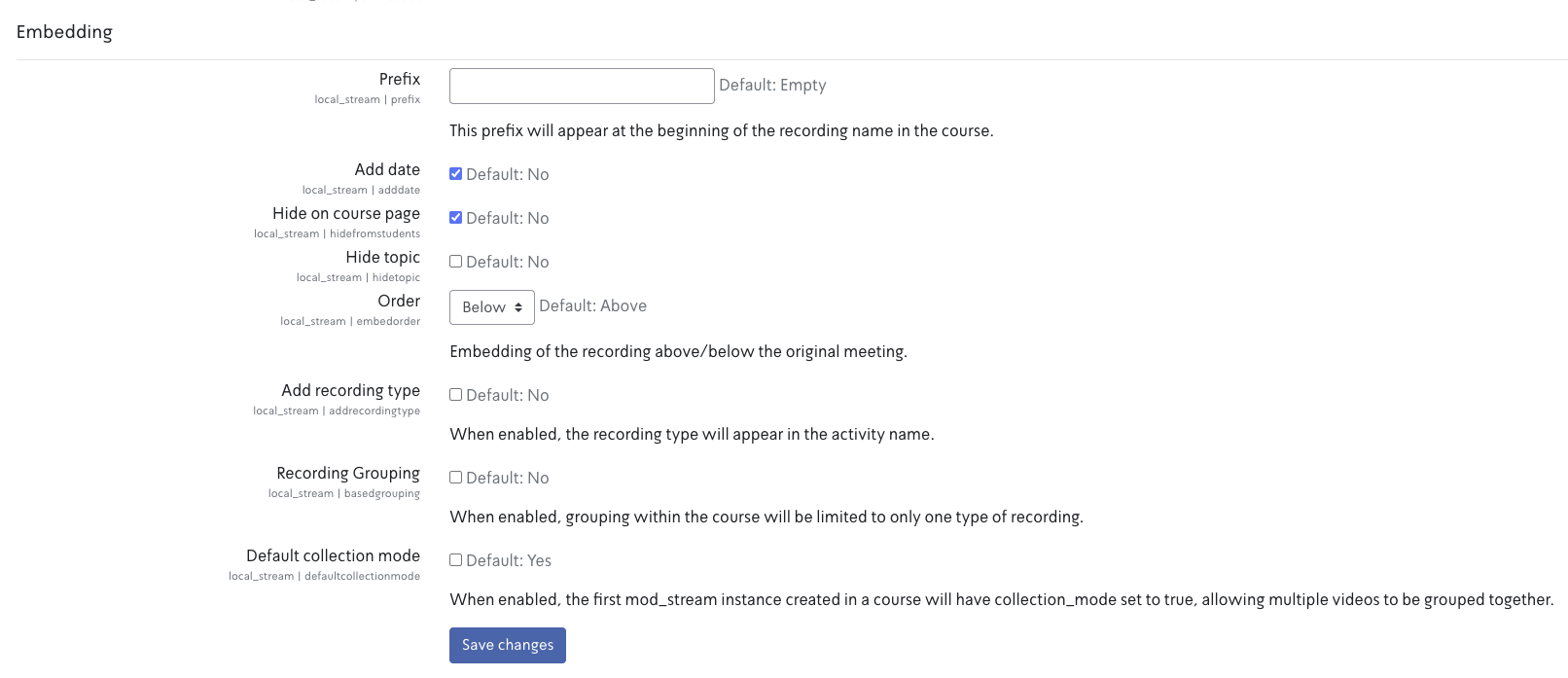
Embedding settings
Under Site administration → Plugins → Local plugins → STREAM, open the Embedding tab to control how recordings appear in the course (prefix, add date, hide on course page, order above/below meeting, recording type, grouping, default collection mode).
7. Enable Scheduled Tasks (Cron)
The STREAM plugin relies on Moodle cron to process meetings and upload recordings. Ensure Moodle cron is running correctly.
The following tasks must run successfully:
- Meeting Indexing Task —
\local_stream\task\listing
This task indexes meetings from the video platform. - Upload Task —
\local_stream\task\upload
This task uploads and processes recordings in the STREAM platform.
8. Verify Cron Execution
You can verify scheduled tasks in Moodle:
Site administration → Server → Scheduled tasks
Confirm the following tasks exist and are running:
- STREAM Listing Task
- STREAM Upload Task
9. Testing the Integration
Once configuration is complete:
- Run Moodle cron manually:
php admin/cli/cron.php
- Wait for the STREAM tasks to run.
- Check that meetings are indexed and recordings appear in the STREAM platform.
10. How STREAM Works in Moodle
The STREAM system is designed primarily for lecturers and instructors.
Features include:
- Automatic indexing of recorded meetings
- Video processing and optimization
- Viewing recordings inside Moodle
- Video analytics
- Video management and editing tools
Students can: view recorded meetings inside the LMS.
Students cannot upload videos by default. Upload permissions are limited to lecturers and staff.
11. Optional Custom Development
If your institution requires additional capabilities (for example student video submissions), our development team can review and implement custom features as part of an annual STREAM subscription plan.